
Illuminator Central Help
Everything you need to get the most out of your lighting management portal.
Can't find what you're looking for?
Contact our support team - we're here to help.
Getting Started
Logging In
Illuminator Central is accessed through your web browser. Login credentials are provided by Halytech when your account is set up. Once logged in, you can update your credentials at any time via Your Profile in the menu.
Navigating Central
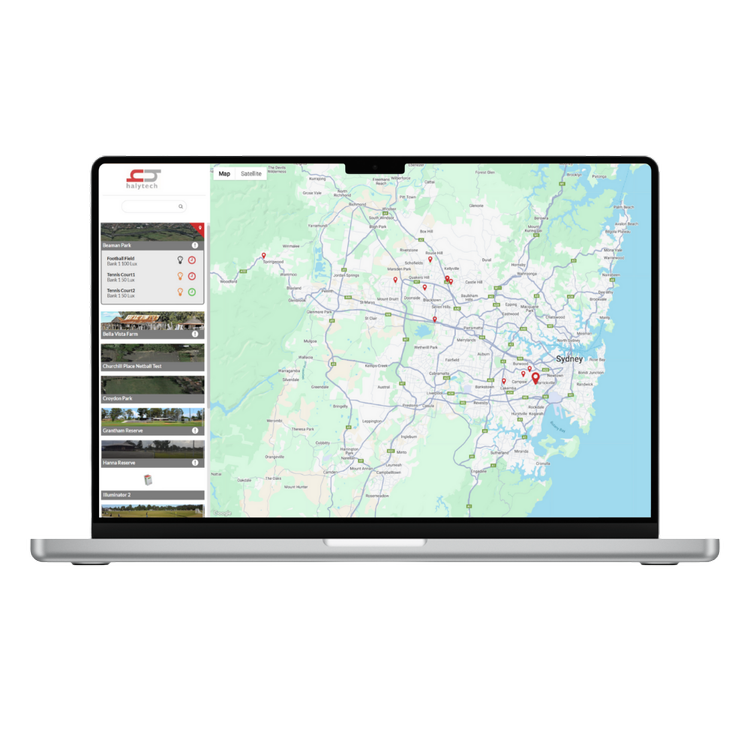
After logging in, you'll land on the Map view, an interactive map showing all your facilities. You can browse facilities from the thumbnail list on the left sidebar, or click directly on the map to select a location. Both Map and Satellite views are available.
The main menu is accessed from the top-right corner and includes:
Map: Your main view of all facilities
Clubs: Manage clubs, PINs, and lighting access
Field Categories: Organise and categorise your fields
Reports: View and download usage and energy reports
Your Profile: Update your login credentials
User Accounts: Manage who has access to Central (Admin only)
Settings: Account and system settings
Help: You're here!
▶ Try the Interactive Walkthrough
Key Concepts
Illuminator Central is built around a few key concepts. Understanding these will help you get the most out of the platform.
Facilities: A facility represents a physical location, such as a sports complex or park. Each facility contains one or more Illuminator units. Your facilities are displayed on the interactive map and in the sidebar list with thumbnail images.
Units: Each unit is an individual Illuminator device installed at a facility. Units are linked to your account by Halytech during setup.
Lighting Scenarios: Scenarios are the pre-configured lighting outputs, or combination of outputs, on your Illuminator, such as "Field 1", "Field 2", “AFL Field” or where dimming is available, "Training", "Match Day", or "100 lux”, “200 lux” etc. Scenarios are set up and wired by the electrician to match the needs of your facility. Each scenario is listed by name and brightness level if applicable (e.g., "Football Field - 100 lux"). On the map view, status indicators show you which lights are currently active: orange means on, grey means off.
Light Availability: Each lighting scenario has a weekly availability schedule that defines when lights can be used. For each day of the week, a start and end time is set. There are two modes:
Timer: Lights turn on and off automatically at the scheduled times. No SMS required. Clubs are not charged for usage when Timer mode is active.
Club Controlled: Clubs can turn lights on and off within the defined time window by sending an SMS with their PIN. Outside the availability window, the PIN won't work.
Light Availability applies to all clubs assigned to a lighting scenario.
Clubs: Clubs represent the people and groups who use your facility's lights. Each club in Central has a name, a club code, a PIN for SMS activation, a contact person, phone number, and email address. This information is used for billing, reporting, and communication.
Light Access: Light Access defines which clubs are authorised to use which lighting scenarios. A single club can be given access to scenarios across multiple facilities.
Field Access Control: Administrators can open or close individual fields to control whether clubs can activate lights via SMS. This is typically used during wet weather or when a field is under maintenance. Open fields show a green indicator, and closed fields show a locked indicator.
Reports: Central logs every activation and provides detailed reporting on usage, runtime, and estimated energy consumption. Custom reports can be created, filtered, and downloaded for billing and administration.
Facilities and Units
How are facilities and units added?
Facilities and units are set up by Halytech as part of your Illuminator Central setup fee for a unit. This includes provisioning the device, creating the relevant facility on your portal and linking everything to your Central account.
If you need a new facility or unit added, contact Halytech support with the following details:
Facility name and location
Phone number of the Illuminator unit
Intended lighting configuration (scenario names and brightness levels)
Who needs access
We'll take care of the rest.
Viewing your facilities
From the Map view, you can see all your facilities at a glance. Click on a facility from the sidebar or the map to view its units, lighting scenarios, and current status. Each scenario shows its name, brightness level, and whether lights are currently on (orange) or off (grey).
Hovering over a lighting scenario reveals additional details including the phone number for SMS activation and deactivation, command codes (e.g., the PIN format for turning lights on and off), and the clubs currently authorised to use that scenario along with their contact details.
What can I manage on my existing facilities?
Once your facilities are set up, you can:
View all units and scenarios at a facility
See real-time on/off status for each scenario
View and manage Light Availability schedules
Manage Light Access for clubs
Open or close fields for wet weather or maintenance
View activation logs and reports
Light Availability and Scheduling
How does Light Availability work?
Light Availability is the schedule that defines when a lighting scenario can be used at your facility. Think of it as a curfew, it sets the boundaries for when lights are available each day of the week.
Each lighting scenario has its own weekly schedule with a start and end time for every day. For example, the "Soccer Field" scenario might be available Monday to Friday from 5:00 pm to 10:00 pm, while "Cricket Field" is only available on Saturdays from 8:00 am to 6:00 pm.
Timer vs Club Controlled
There are two modes for Light Availability:
Timer: A simple automatic on/off function. Lights turn on at the start time and off at the end time. No user interaction required, and clubs are not charged for usage during Timer-controlled periods.
Club Controlled: Clubs can turn lights on and off within the defined time window by sending an SMS with their PIN. Outside the availability window, the PIN won't work. This gives you facility-wide curfew control while still letting clubs manage their own usage within those hours.
Light Availability applies to all clubs assigned to a lighting scenario. If "Training" is available until 10:00 pm, that curfew applies to every club with access to that scenario.
How does activation work in Club Controlled mode?
The process is straightforward. A club member sends an SMS containing their PIN command to the Illuminator unit's phone number. The Illuminator checks with Central to confirm the PIN is valid, the club has access to the requested scenario via Light Access, and the current time falls within the Light Availability window. If everything checks out, the lights come on. If not, the request is rejected.
Field Access Control
Administrators can also open or close individual fields at any time, regardless of the Light Availability schedule. When a field is closed, clubs cannot activate lights via SMS even if the time falls within the availability window.
This is typically used for wet weather closures or when a field is under maintenance. Field status is clearly indicated in Central.
What scheduling doesn't do
In Club Controlled mode, Central does not automatically turn lights on. Lights are always activated by a club member sending an SMS. Central determines whether that request is authorised at that moment based on Light Availability and Light Access settings.
In Timer mode, lights activate and deactivate automatically based on the configured schedule.
Clubs & PINs
What are Clubs in Central?
Clubs are the people and groups who use your facility's lights. Each club in Central has a name, a unique club code, a PIN for SMS activation, a contact person, phone number, and email address. This information is used for tracking usage, generating reports, and managing billing.
For example, you might set up clubs like "Bankstown Sports Stars FC", "Bella Vista Cricket Club", or "Allstars RC", each with their own unique PIN and contact details.
Managing clubs
The Clubs section in the menu gives you a full directory of all clubs. From here you can:
Search for clubs by name
Add new clubs
Edit club details (name, code, PIN, contact person, phone number)
Edit lighting access permissions for each club
Light Access
Light Access controls which clubs can use which lighting scenarios. You can assign a club access to scenarios across multiple facilities. For example, a cricket club might have access to the cricket field lighting at two different facilities managed by your council.
To manage a club's lighting access, go to the Clubs section, select the club, and edit their lighting access permissions. You can add or remove specific lighting scenarios as needed.
How do PINs and SMS work?
The SMS process is the same as it's always been, users send their PIN command via text message to the Illuminator unit's phone number. Each scenario has specific command codes for turning lights on and off. These details can be viewed by hovering over a lighting scenario on the map view.
Central works behind the scenes to validate the PIN dynamically, but the user experience doesn't change.
What changed with Central?
Before Central, PIN permissions were stored locally on the device and could only be changed by visiting the site. With Central, PIN validity is checked dynamically against your Light Access and Light Availability settings, changes are managed from your browser, and updates take effect without anyone needing to visit the facility.
Extranet & SIM Configuration
What is Extranet?
For Illuminator Central to communicate with your Illuminator unit, the SIM card in the unit must have Extranet enabled. Extranet is a Telstra network service that allows the device to connect to Central's servers.
Why does this matter?
If Extranet is not enabled on the SIM, the Illuminator unit will not be able to be accessed by Halytech to be configured for Illuminator Central.
What do I need to do?
Extranet must be configured by Telstra on the SIM card. This is not something that can be enabled through Central or by Halytech directly.
If you're setting up a new Central installation or experiencing connectivity issues, confirm with your Telstra account manager or ask your IT team to contact Telstra directly to ensure Extranet is active on the SIM. Halytech support can advise on the specific Extranet requirements if needed.
Accounts and Permissions
What are Central user accounts?
Central user accounts are web login accounts for the portal itself, these are separate from the club PINs used to activate lights via SMS. User accounts are managed from the User Accounts section in the menu (Admin only).
There are typically three levels of access:
Admin: Full access to all facilities, users, settings, and reports.
Manager: Access to specific facilities, with the ability to manage Light Availability, Light Access, clubs, and reports for those facilities.
View-only: Reporting and read-only access.
Your Profile
All users can access Your Profile from the menu to update their login credentials, including changing their password.
Adding and managing users
Admins can create new user accounts, assign users to specific facilities, and set their permission level. We recommend limiting Admin access to key personnel and assigning facility-based access where possible.
Reports
What does Central log?
Every activation attempt is recorded. Central logs include the club and PIN used, the facility and scenario triggered, date and time of the request, whether authorisation was approved or rejected, the configured runtime duration, and estimated energy usage.
Creating custom reports
In the Reports section from the menu, you can create custom reports by filtering by date range. Reports can then be downloaded as Excel files, either for an individual club or for all clubs across the facility, making it easy to produce billing summaries for council or internal chargeback.
Reports include:
kWh summary: Estimated energy consumption for the selected period
Usage summary: Total activations, runtime hours, and breakdown by club and scenario
Billing and Timer mode
When a lighting scenario is set to Timer mode, clubs are not charged for that usage. Timer-controlled activations are tracked separately in reporting so billing only reflects club-initiated usage.
A note on energy estimates
Central calculates estimated energy usage by multiplying runtime hours by the configured kW rating for each scenario. This is a calculated estimate. not a direct measurement from an electricity meter. If precise metering is required, an external energy meter can be integrated separately into the Illuminator for precise measurement, contact Halytech for more information on how this can be done.
Common reporting questions
Why does the energy estimate not match my electricity bill?
Because the figure is calculated from runtime and configured kW, not measured directly. Differences are normal.
Why is a club appearing outside the expected time?
Check the Light Availability configuration for the relevant scenario. The start/end times may need adjusting.
Why are no logs appearing?
This is typically a device connectivity issue. Confirm the Illuminator unit is online and communicating with Central. Also confirm Extranet is enabled on the SIM. If the issue persists, contact Halytech support.
Troubleshooting / FAQ
-
Confirm you're sending the SMS to the correct phone number for that unit. You can find the number by hovering over the lighting scenario on the map view.
Check that you're using the correct PIN and command code.
Confirm the current time falls within the Light Availability window for the scenario.
Check that the field is open (not closed for wet weather or maintenance - look for the padlock symbol).
Verify mobile signal at the facility, the Illuminator needs to receive the SMS.
-
Check whether the Light Availability window has changed or been removed for the relevant scenario.
Confirm the schedule is still active for the current day and time.
Verify the club's Light Access is still configured for the correct scenario.
Check the field isn't closed.
Contact your Central administrator to review the settings.
-
This usually means the club's PIN is mapped to a different scenario than expected. Review the Light Access settings in Central and update if needed.
Hovering over each scenario on the map view will show which clubs and PINs are authorised, use this to verify the mapping.
-
Check the Light Availability configuration. The start and end times or days may be set incorrectly.
Confirm the unit is set to Central Control, if unsure contact Halytech
-
Confirm the SIM card has Extranet enabled by Telstra. This is the most common cause of connectivity issues.
Verify the unit has mobile signal.
Contact Halytech support if the issue persists.
-
Confirm if the unit is Central Control, contact Halytech support.
-
An administrator may have closed the field for wet weather or maintenance. Check with your Central admin or open the field from the facility view (green = open, locked = closed).
-
If you adjust a Light Availability timer to an earlier start time on the same day it's meant to activate, the lights may not come on at the new time. They'll still activate at the originally scheduled time.
This happens because the Illuminator unit syncs with Central overnight, and again each time it receives an SMS or a scheduled timer activates. If the new start time is earlier than the original, the unit hasn't had a trigger to check Central and pick up the change yet.
Workaround: Send an SMS to the unit after making the change, this prompts it to sync with Central and pick up the updated schedule. Alternatively, make same-day timer adjustments before the new start time by planning changes the day before where possible.
Need Help?
If you can't find what you're looking for or need assistance with your Illuminator Central account, our team is here to help.
Email: support@halytech.com.au
Phone: +61 2 8814 5235